
At BlancoByte, we often work with large-scale ClickHouse deployments where backup speed and operational simplicity matter. ClickHouse offers multiple ways to back up and restore data—ranging from full disk snapshots to export/import pipelines. In this post, we’ll focus on one of the most lightweight and misunderstood options: the FREEZE command.
We’ll explain what the FREEZE command does, how it works under the hood, when it makes sense to use it, and where its limitations begin. Along the way, we’ll walk through practical examples using updated sample tables.
What Is the FREEZE Command in ClickHouse?
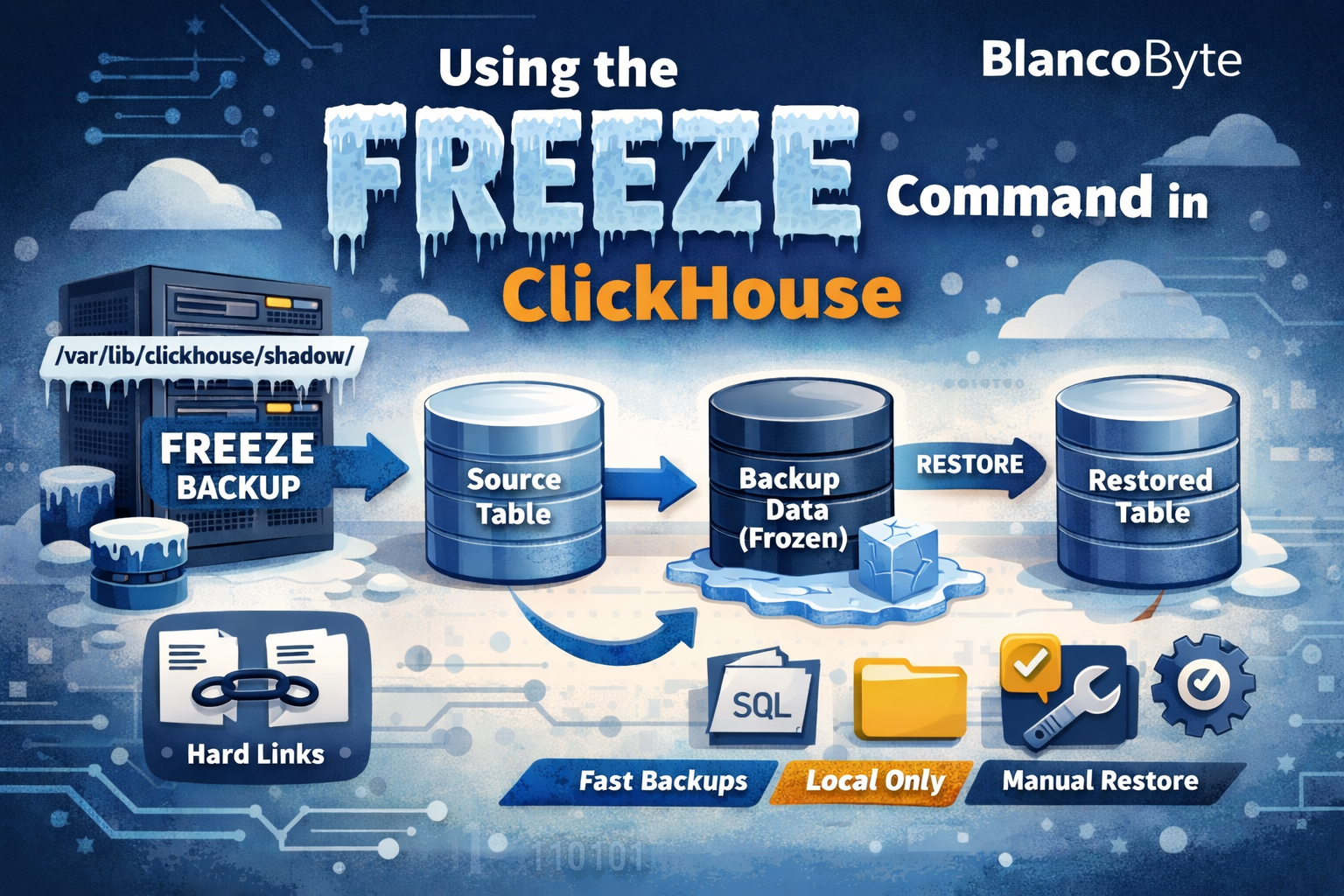
The FREEZE command is an ALTER TABLE operation that creates a local backup of a table or a specific partition.
ALTER TABLE db_name.table_name
 FREEZE [PARTITION partition_expr]
 [WITH NAME 'backup_name']
Key characteristics:
- Works at table or partition level
- Creates backups locally on the same server
- Stores backup data under
/var/lib/clickhouse/shadow/ - Does not copy metadata (table definitions)
If the PARTITION clause is omitted, ClickHouse freezes the entire table.
How FREEZE Works Internally: Hard Links Explained
FREEZE relies on hard links, a filesystem feature available on Linux.
Hard Links vs. Soft Links (Symlinks)
- Hard link: Multiple filenames point to the same underlying data blocks
- Soft link: A file points to another filename, not directly to the data
When ClickHouse executes a FREEZE command:
- It creates hard links to the existing data parts
- No data is physically copied
- The operation completes almost instantly, regardless of table size
Because the backup references the same data blocks, later merges or deletes in the original table will not affect the frozen data.
Where FREEZE Backups Are Stored
Frozen data is placed under:
/var/lib/clickhouse/shadow/<backup_name>/
The directory structure mirrors ClickHouse’s internal data layout, including UUID-based paths and part names.
⚠️ Important: Since metadata is not included, restoring to another server requires copying the table definition as well.
Restoring Data from a FREEZE Backup
At a high level, restoring data from FREEZE involves:
- Creating the destination table (if it doesn’t exist)
- Copying frozen data into the destination table’s detached directory
- Attaching partitions or parts
- Cleaning up old backups
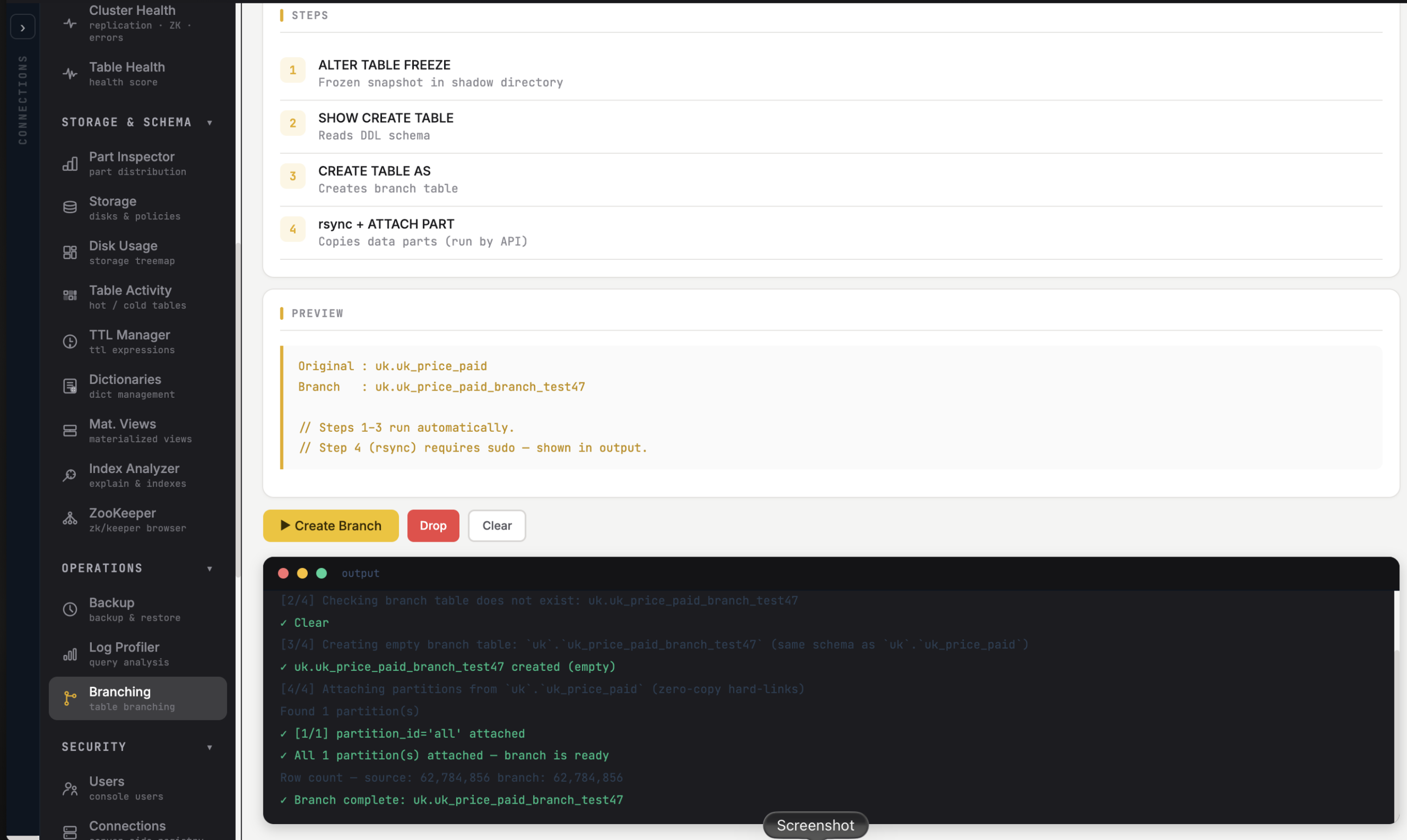
Scenario 1: Freezing and Restoring a Single Partition (Single Node)
Step 1: Identify Available Partitions
SELECT
 count() AS rows,
 _partition_id
 FROM analytics.events
 GROUP BY _partition_id
 ORDER BY _partition_id;


┌─rows─┬─_partition_id─┐
 │ 512 │ 20240115 │
 │ 623 │ 20240116 │
 │ 488 │ 20240117 │
 └──────┴───────────────┘
We’ll back up partition 20240116.
Step 2: Freeze the Partition
ALTER TABLE analytics.events
 FREEZE PARTITION 20240116
 WITH NAME 'events_20240116_backup';
ClickHouse creates hard links under:
/var/lib/clickhouse/shadow/events_20240116_backup/...
Step 3: Drop the Partition
ALTER TABLE analytics.events
 DROP PARTITION '20240116';
Step 4: Restore the Partition
Copy the frozen data into the table’s detached directory:
rsync -a \
 /var/lib/clickhouse/shadow/events_20240116_backup/store/.../20240116_* \
 /var/lib/clickhouse/data/analytics/events/detached/
Attach the partition:
ALTER TABLE analytics.events
 ATTACH PARTITION 20240116;
Verify restoration:
SELECT count()
 FROM analytics.events
 WHERE _partition_id = '20240116';
Scenario 2: Freezing a Non-Partitioned Table and Restoring to a New Table
Even when a table is not explicitly partitioned, ClickHouse stores data in parts.
Step 1: Inspect Parts
SELECT
 name,
 database,
 table
 FROM system.parts
 WHERE database = 'telemetry'
 AND table = 'sensor_readings';


┌─name────────┬─database──┬─table──────────┐
 │ all_1_1_0 │ telemetry │ sensor_readings│
 │ all_2_2_0 │ telemetry │ sensor_readings│
 │ all_3_3_0 │ telemetry │ sensor_readings│
 └─────────────┴───────────┴────────────────┘
Step 2: Freeze the Entire Table
ALTER TABLE telemetry.sensor_readings
 FREEZE WITH NAME 'sensor_readings_full_backup';
Step 3: Create a Destination Table
Extract metadata:
SHOW CREATE TABLE telemetry.sensor_readings;Create a new table:
CREATE TABLE telemetry.sensor_readings_restore
 (
 sensor_id String,
 value Float64,
 recorded_at DateTime
 )
 ENGINE = MergeTree
 ORDER BY (sensor_id, recorded_at);
Step 4: Copy Parts to Detached Directory
rsync -a \
 /var/lib/clickhouse/shadow/sensor_readings_full_backup/store/.../* \
 /var/lib/clickhouse/data/telemetry/sensor_readings_restore/detached/
Step 5: Attach Parts Individually
ALTER TABLE telemetry.sensor_readings_restore ATTACH PART 'all_1_1_0';
 ALTER TABLE telemetry.sensor_readings_restore ATTACH PART 'all_2_2_0';
 ALTER TABLE telemetry.sensor_readings_restore ATTACH PART 'all_3_3_0';
Using FREEZE in Distributed and Sharded Clusters
FREEZE works reliably in:
- Single-node deployments
- Replicated tables
- Sharded clusters
However, FREEZE must be executed on every shard, and backups must be collected and restored shard-by-shard.
Advantages and Limitations of FREEZE
✅ Advantages
- Extremely fast (no data copy)
- Minimal system load
- Ideal for ad-hoc or one-time migrations
- Simple and transparent
⚠️ Limitations
- Metadata is not included
- Manual file movement is required
- Parts and partitions must be attached one by one
- Not suitable for automated daily backups
- Backup lifecycle management is manual
Conclusion
The ClickHouse FREEZE command is a powerful yet simple tool when used in the right context. Its reliance on filesystem-level hard links makes it incredibly fast—but also places responsibility on the administrator for metadata handling and backup hygiene.
Used wisely, FREEZE can save hours of downtime and terabytes of unnecessary data movement.
If you’d like help designing a robust ClickHouse backup strategy or automating safe migrations, BlancoByte is always happy to help.